Neops Web Client 3.3.0
Released 2026-06-10
This release makes recurring schedules easier to read and makes task selection, searching, and execution context behave consistently across the web client.
At a glance
| Area | What changed | Why it matters |
|---|---|---|
| Cron job browser | Periodic intervals use plain language, cron fields have guidance, and each row has a clear edit action. | Users can understand schedules without mentally decoding every value. |
| Cron job editor | The modal presents names, descriptions, status, schedule fields, task selection, and target filters as recognizable controls. | Reviewing or changing a recurring task is less ambiguous. |
| Task cockpit | Results reload for the active scope while search, sorting, and page-size choices are preserved. | Switching scopes no longer risks showing stale or unrelated tasks. |
| Task launches | Tables, cards, the cockpit, and dry-run replay use the same target-selection rules. | The task runs against the targets the user can see and expect. |
Highlights
Read recurring schedules without decoding them first
The cron job browser distinguishes ordinary cron schedules from periodic intervals. A cron value remains visible in the familiar five-part order, while a periodic value is rendered as plain language such as Every 6 hours.

The interval column keeps cron values aligned and translates periodic schedules into readable text.
The information icon on the interval heading explains the order as minute, hour, day of month, month, and day of week. This gives occasional users a reminder without taking space from every row.
Edit a schedule as a form, not as an opaque object
The edit action opens a focused modal with the fields needed to understand the job:
- the job name and description;
- whether the job is enabled;
- cron or periodic schedule type;
- the individual interval fields;
- the Neops task to run;
- the entity filter that selects the targets.
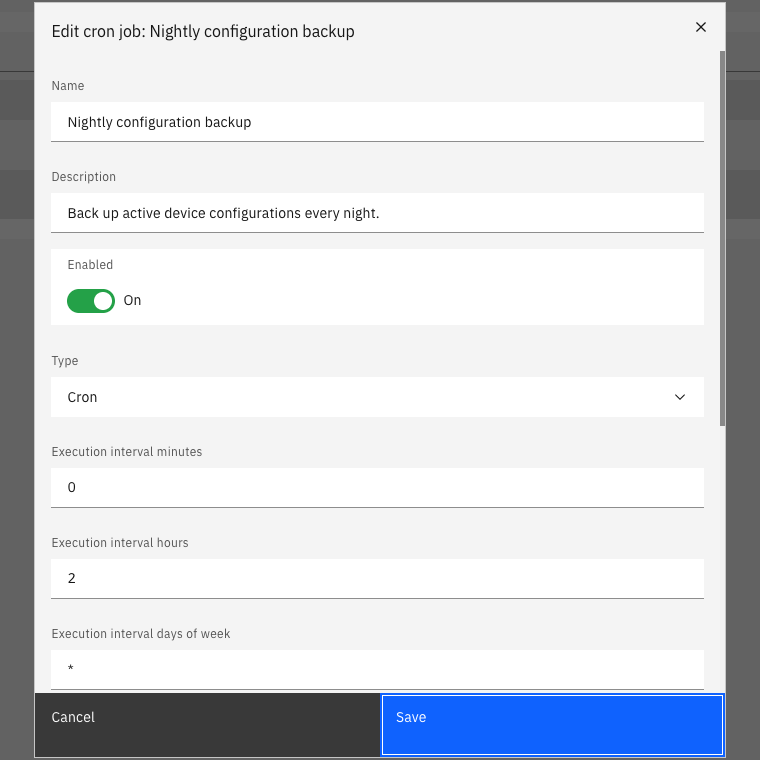
A nightly backup is expressed as separate minute, hour, day, and month controls instead of one unexplained string.
For example, a nightly configuration backup at 02:00 uses minute 0, hour 2, and wildcards for the remaining fields.
The entity filter can then narrow that recurring run to a location or another searchable set of entities.
Keep the task cockpit aligned with the active scope
Previously, returning to the task cockpit or changing scope could briefly show tasks from the previous context, or leave the table empty until another reload. The cockpit now owns its result state and requests the correct scope whenever the route or scope changes.
In practice:
- Search for a task by the beginning of its unique task name.
- Sort or choose a larger page size when needed.
- Switch to another scope.
- The cockpit reloads that scope, keeps the search, sorting, and page-size choices, and starts again on page 1.
Search, sorting, pagination, and total counts stay on the server, so large task collections do not have to be loaded into the browser first.
Know exactly which targets a task will use
Task launch behavior is now consistent across its entry points:
| Starting point | Targets used | What happens next |
|---|---|---|
| Table with selected rows | Exactly the selected rows | The task panel opens with those entities as the target set. |
| Table with no selected rows | The current scope, search, and local filters | The visible working context defines the target set. |
| Direct table run | The resolved table targets | The executions panel opens immediately so progress is visible. |
| Apply again after a dry run | The original targets and input data | The task panel reopens with the previous context restored for confirmation. |
This removes the need to remember different targeting rules for dashboard tables, task cards, the task cockpit, and execution details.
Upgrade notes
No saved task or cron configuration migration is required for this release. The changes affect how existing schedules and task context are presented and carried through the UI.
Technical details